

Note: While the purpose of this article is to consolidate SD card facts, corruption issues and all of their possible fixes, don't forget to check out the best SD card recovery solution after reading this article.


As we move towards the paperless era, the utility of digital storage media has grown manifold. Especially in terms of personal data storage, where individuals commonly rely on extended capacity of portable data storage solutions like SD cards and memory cards. The spur in digitization has transformed SD cards into the most convenient and inexpensive storage media. It provides volatile storage as well as encryption capabilities for protected content too. The latest SD cards are faster with higher storage capacities. They are universally used in camcorders, music players, android smartphones, tablets, digital cameras, and other portable devices.
However, SD cards are prone to corruption, accidental formatting or damage, leading to loss of all the stored photos, videos, and audio files in both Windows and Mac. Usually, this situation initiates with an error message. If not handled properly, it might lead you to a permanent data loss situation in which the SD card recovery gets difficult. Moreover, memory cards have a limited lifespan, so after a certain period of usage they are bound to get corrupt or damaged.
Yes, your SD card got corrupt if it has any of these symptoms!
Your SD card is deemed corrupt if you find the below signs in both Pc and Mac systems:
 A black screen appears along with an error message 'SD card is not accessible. The file or directory is corrupted and unreadable.'
 Most of the photos on your SD cards are missing.
 When you try to read the SD card through a system, no folder appears, or the folders do not open and show error messages - 'Read / Write error on SD card' that indicates it cannot read from the device.
 You get error messages reading 'memory card error' or 'corrupt memory card' while trying to access your precious photos or videos stored on the card. Read more on Memory Card Recovery.
 You can see the contents of your SD card in your camera as well as in your system, but unable to copy these contents and get an error message that disk is ‘write-protected.’
 Your SD card is recognized by your PC, but you are unable to see any stored photo or video. It shows the message 'SD card is not formatted. Do you want to format it now?'
 You are unable to add, delete, copy or save anything in your SD card.
There is no guarantee that you will always recover your data back. In the case of physical damage, you may not be able to repair it, but a logical error may be tackled in some simple ways.
Wait! Have you tried any of these First Aids/Handy fixes before going further?
Determine the type of your SD card; then it may require an SDHC device to read it. At times, some devices like readers and cameras may need software download to read the SDHC cards. Therefore, go to the device manufacturer's website and find out prerequisites.
7 Fixes for Corrupt SD Card and Photo Recovery (An Infographic Chart)
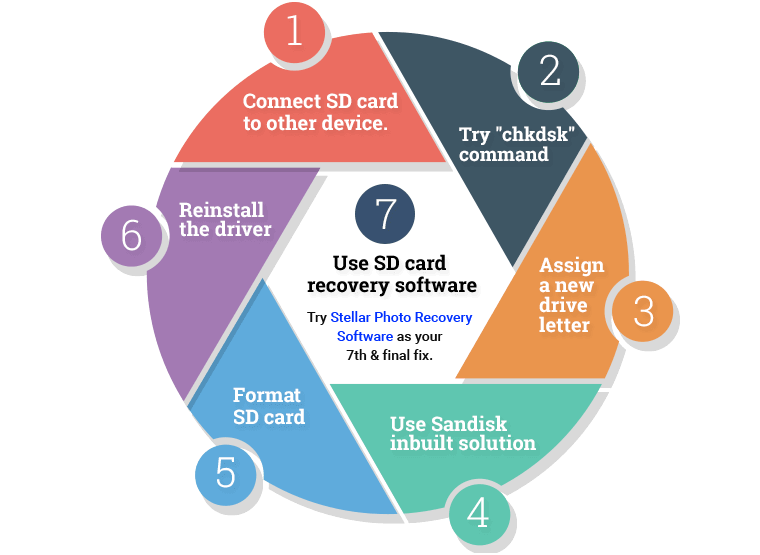
Let us have a look at the above fixes in details and see which works best for you
Fix 1: Connect SD card to another device
At times, a device may not read an SD card due to incompatibility or driver-related issues. In such cases, try to connect your SD card to another device in both PC or Mac.
Fix 2: Try chkdsk command to check for memory card errors
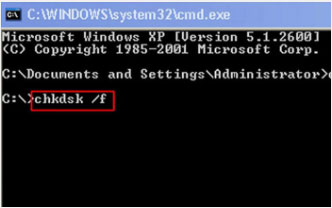
Type “chkdsk” followed by drive letter, colon and /f at the command prompt:
- Insert the affected card into a card reader and connect it to your system.
- Click on the "Start" option from your Windows taskbar and then select the "Computer” option.
- Search for your SD card under "Devices with Removable Storage" and note the drive letter assigned.
- Next, click the "Start" option again and type "cmd" in the "search" box.
- Right-click "cmd" and then select the "Run as administrator" option.
- A command window opens, and you can fix your corrupt memory card from here.
- Next, type "chkdsk" followed by the drive letter corresponding to the SD card, then by a colon and /f.
- After you press "enter", the Chkdsk will check for possible errors and try to fix the corrupt SD card. Follow the subsequent message prompts.
- Lastly, check your assigned drive letter to your SD card to verify if the files are recovered or not.
Fix 3: Assign a new drive letter to an unreadable SD card
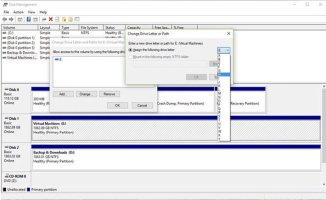
Connect your SD card to a card reader in the system, If your system does not assign a new drive letter to it, then it isn't reading it or the card is unreadable. In some cases, the reader might be assigned a drive letter, but still, you get the message "Please insert the disk into drive E:" indicating that it isn't reading the card. To resolve this problem assign a new drive letter to this connected Card through your operating system settings.
Fix 4: Use Sandisk in-built solution to restore deleted files from SD card
If none of the files can be read, then possibly the directory will list the filenames, but the files can't be accessed. You can right-click on the drive letter and select "Properties." If you can view the used space on the card and if it shows all or almost all free space, then either all the files have been deleted, or the directory has been erased. In this case, you can use a Sandisk inbuilt solution that might restore all the deleted files easily.
Fix 5: Format SD card
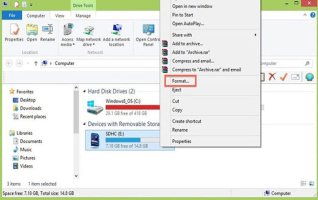
If you can read all the files but cannot save them, then your card might be in write protected mode. Unlock the write-protection switch to save or modify files on the card.
If, you are still unable to read or write to the card, then possibly your files are lost or have become inaccessible. To fix it, you need to use a disk diagnostic tool that can work on memory cards too. Although you can also get access to your card by reformatting it, it will remove everything on the card. Therefore, make sure you have recovered all the stored files and copied everything to another drive before SD Card format.
In the case of cameras or android smartphones you need to use an SD card Recovery software as most of the files stored on your SD card will be related to photos and other media files. There are some SD card recovery tools available online for both PC and Mac which are efficient enough to offer you the best and accurate recovery results. You just need to choose the right tool and try to restore your lost, deleted and inaccessible files from the SD card.
Fix 6: Reinstall the driver
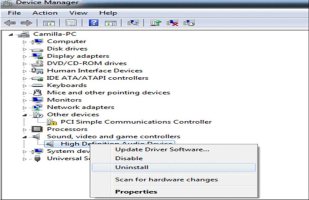
You can try to reinstall the driver by following steps:
- Go to and right click on My Computer/ This PC. Click the Manage option.
- Click the Device Manager option on the left side.
- Double-Click Disk Drives option from the list. Then Right Click on the name of your removable drive.
- Click Uninstall and click Ok.
- Disconnect your storage media and restart your PC.
- Reconnect your SD card again. Your PC will detect it.
Fix 7: Nothing worked? Yes, Recovery Software is your solution!
Whenever an SD card becomes inaccessible or formatted, mostly the stored data gets lost. However, all files remain in the same position on the card and can be recovered by a photo recovery software. Stellar Photo Recovery Software is specially designed to fetch all the lost photos and other media files from their actual place and make them visible. To restore all lost files from an SD card, make sure the card is not physically damaged. Additionally, stop using your SD card before recovery.


 Posts
Posts




0 Comments